
Workflows on encrypted data: what automation can do when the server is blind
Alerts, retention, webhooks and scheduled computation on files the server cannot read. What a workflow sees, what runs where, and the two actions that need your device.
Automation and end-to-end encryption look like a contradiction. Automation lives on the server, where it can run at three in the morning without anyone’s laptop open. End-to-end encryption exists so that the server cannot read anything. A product that promises both has to say precisely what its automation can act on, and the honest answer is: on everything the server knows, and nothing it does not.
That turns out to be a useful amount. The server knows when a file arrived, who uploaded it, which folder it landed in, what labels the browser attached to it, when it was shared, downloaded or deleted. It never knows the name or the content. Sapherbox workflows are rules over exactly that first list, and this article walks through what they can trigger on, what they can do, what they cannot, and how the one kind of action that needs your keys is handled without giving the server any.
A rule in three parts
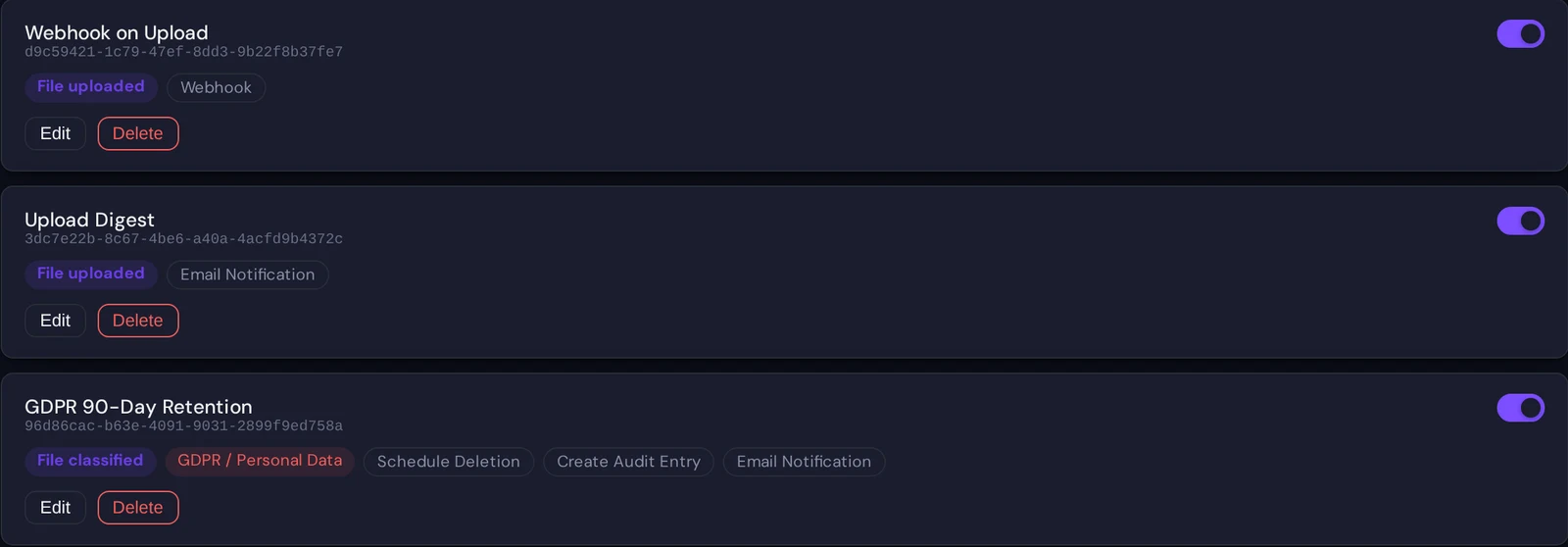
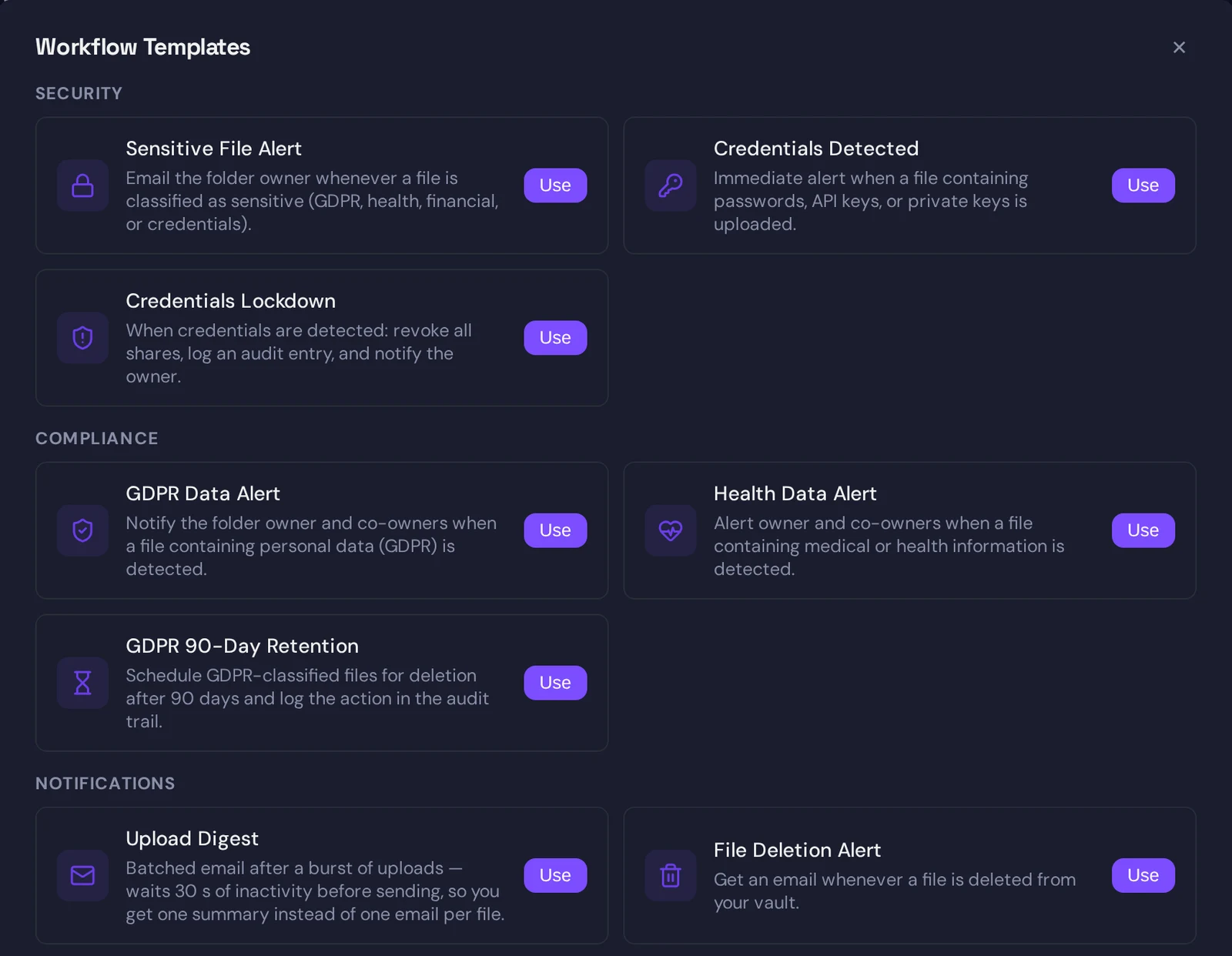
A workflow has a trigger, an optional filter and one or more actions. You build it in the Workflows page, or start from one of the twelve templates and adjust it.
The trigger is one of seven events: a file was uploaded, downloaded, shared, deleted or classified, or a folder was created or shared. The filter narrows the trigger to a particular folder, and for the classification event, to particular labels: personal data, health data, financial data, credentials. A workflow belongs to the person who created it and fires on events in their own files and folders. Nobody can attach a rule to your uploads but you.
The actions are where the rule does its work, and they fall into three groups: actions that tell someone, actions that change the file’s standing, and actions that start computation. Each group has a different relationship with the server’s blindness.
Telling someone
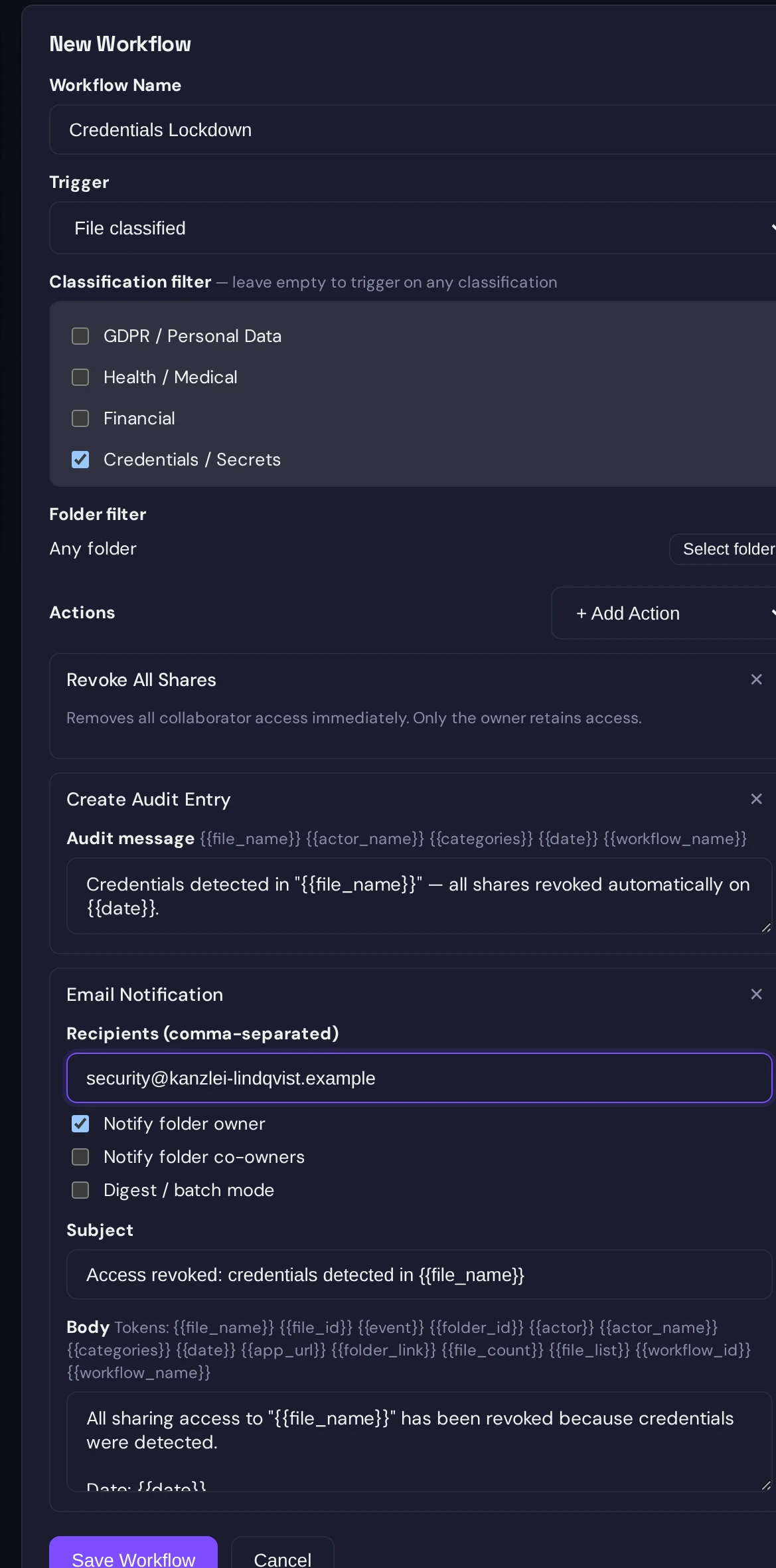
An email notification goes to a fixed list of addresses, to the folder’s owner, to its co-owners, or any combination. The subject and body are templates with placeholders: the masked file name, the event, the actor’s name and address, the labels found, a link to the folder, the date. The server fills them in from what it has, so an alert can say “A file matching Credentials was uploaded to Finance by j.berger@…”, but it cannot say which file by name, because the name is sealed. The masked form, first and last character with the middle starred, is what the audit log shows too.
Notifications can be batched. A digest window collects events for a period and sends one message listing them, which is the difference between an inbox that tells you “fourteen files arrived in the shared folder this afternoon” and an inbox with fourteen emails in it.
A webhook posts the same fields as JSON to a URL you choose, signed with an HMAC over the body using a secret you set, so the receiving system can verify that the call came from your tenant and was not altered. This is the integration point for ticketing systems, chat channels and anything else that reacts to events. It receives identifiers, labels and masked names, never content.
An audit note writes a line into the tamper-evident audit log under the actor “workflow: name”, with a message you template. It is a way of putting a policy decision on the record automatically: “flagged as credentials by the lockdown rule” next to the upload it refers to, so that an auditor reading the log later sees not just what happened but which rule reacted.
Changing the file’s standing
Scheduled deletion gives the file a deletion date a number of days out. It moves to the recycle bin on that date and is purged after the bin window. This is how the retention templates work: everything classified as personal data in a given folder is scheduled for deletion ninety days after it arrived, with an audit note saying so. We have described the deletion timeline separately; the workflow only sets the date, the rest is the same path every deleted file takes.
Revoke all shares removes every grant on the file except the owner’s. It is the containment move in the credentials template: a file that turns out to contain a password or an API key stops being shared with anyone the moment it is recognised. One limit has to be stated here. Removing grants is something the server can do alone. Rotating the file’s key, so that a recipient who already cached it cannot use it anymore, needs your device, because the server has no keys to rotate with. The workflow therefore cuts access at the server immediately, and the next time you open the file’s member list you complete the revocation with a rotation. We have written about why the two steps differ.
Auto-move and copy to folder re-file the object. Here the server’s blindness shows most clearly. A file sitting in a shared folder has its key sealed to that folder’s key pair, and moving it elsewhere means sealing the key to the destination, which only your browser can do. So these two actions work on files whose key the server holds sealed to you, which in practice means uploads into your own top-level area, the inbox pattern: things arrive at the root, a rule sorts them into Finance or Contracts, or drops a copy into an archive folder. The moved or copied file stays sealed to you alone: you can open it, the members of the destination folder cannot, until you move or share it once from the browser, which seals it for them. For a file already inside a shared folder the action does nothing rather than leave behind a file nobody can open, and the server log records the refusal.
Starting computation
The third group is where the design gets interesting. A workflow can queue a compute job or a catalog query. Both operate on file contents, which the server does not have.
The resolution is that the server queues and your browser runs. When the rule fires, the server records a pending run and pushes a notice to your session. The Workflows page shows a badge; you open it, see the run with the job it belongs to, and approve it. From that moment the work happens on your device: the files are downloaded as ciphertext, decrypted with your keys, processed, and the result is encrypted and uploaded as a new file in the output folder you configured. The server sees a job start, a job finish and a new ciphertext object, and writes an audit entry for each. It never sees a row of the data.
This means scheduled computation in Sapherbox is not unattended in the way a cron job is. It needs a browser with your session open, and it asks before it runs. We chose that over the alternative, which would be holding a copy of your keys on the server so that a job can run while you sleep. The approval step is also a safety property: a workflow cannot silently produce derived documents from your data; every run is a decision you see.
What the server sees of a workflow
The rule itself is stored in plaintext. Trigger, filter, actions, email addresses, webhook URL and the message templates are readable by the server and by your administrators, because the server has to evaluate them. We say this in the list of what our servers can see, and it is worth repeating here: do not put anything into a workflow name or an email template that you would not put into a support ticket. The compute jobs a workflow refers to are different; their names and operation lists are encrypted, and the server stores only the identifier and the folders involved.
What a workflow can never do is make the server learn something it did not already know. A rule fires on metadata the server already holds. Its outputs are emails and webhooks built from that metadata, flags on rows it already has, and queued runs that your device executes. There is no action that decrypts anything on the server, because there is no key on the server to do it with.
Twelve starting points
The template gallery covers the rules most tenants want on day one. Four are security rules: alert on sensitive files, alert on credentials, lock down credentials by revoking shares and writing an audit note, and a GDPR data alert. Three are compliance rules: a health-data alert, ninety-day retention for personal data, and an upload digest. Three notify on deletion, folder sharing and uploads. Two automate filing: sort financial files into a folder, and keep an archive copy of every upload. Each template is a normal workflow after you pick it, so the addresses, folders and windows are yours to change.
Questions?
If you are mapping a retention schedule or an alerting policy onto these rules, want the webhook payload and signature scheme in writing for an integration, or need to know what a specific action can and cannot do in your folder structure, get in touch at hello@sapherbox.com.